
Set your rules
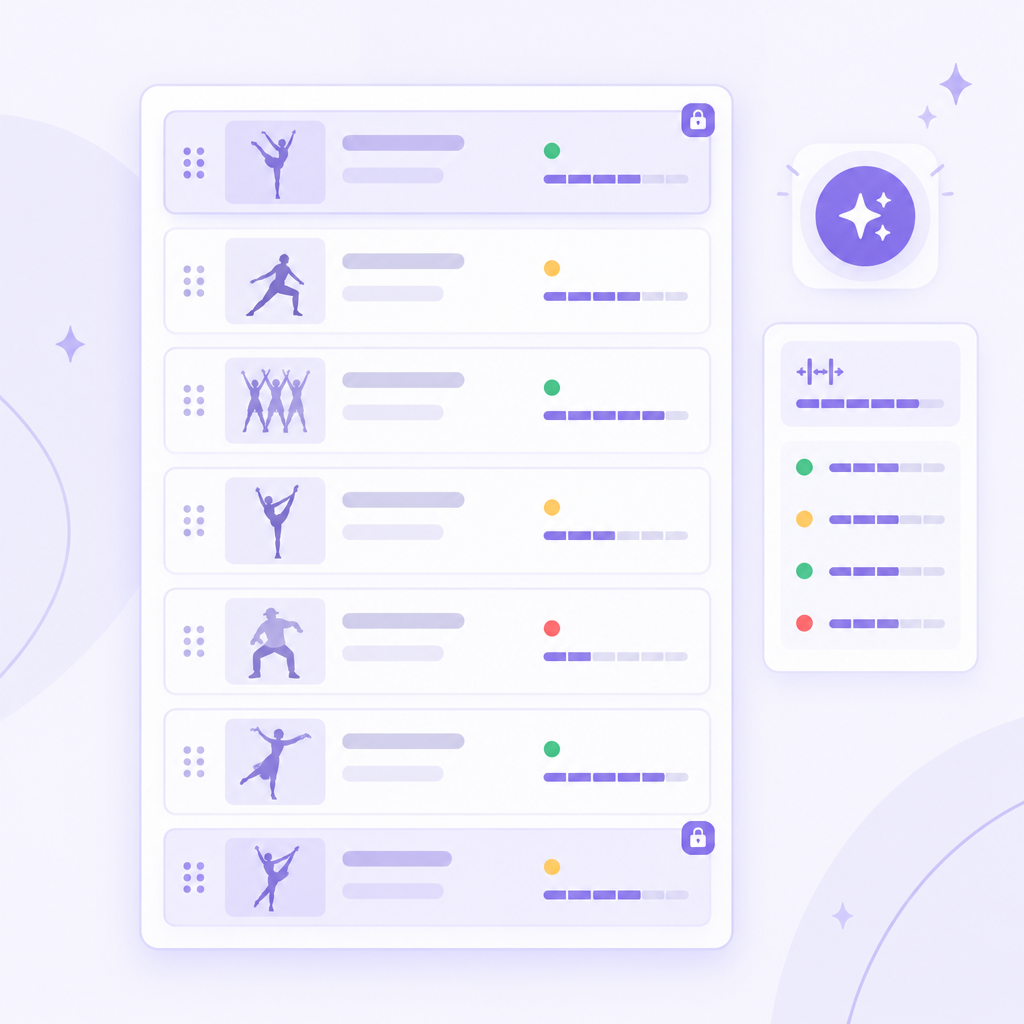
Lock any routine to an exact spot — the opener, the finale, the senior tribute — or lock a break after a certain number.
Set your rules and priorities, press Optimize, and get a lineup with fewer quick changes, better spacing and balanced acts. Then fine-tune it by hand with live conflict checks. You stay in control of every final call.
Building a recital lineup is a puzzle with hundreds of pieces. Every dancer in more than one number needs time to change. The minis can't wait until 9 PM. Your senior soloists need their spotlight. Most studio owners spend nights moving index cards around a table, then find a back-to-back change the week of the show. The Show Order Optimizer works through every combination for you and hands back a lineup that fits your rules.
Lock any routine to an exact spot — the opener, the finale, the senior tribute — or lock a break after a certain number.
Tell the optimizer what matters most for this show, from fewer quick changes to getting the minis home early.
ShowSculptor searches for the lineup that best fits your rules and priorities.
Drag routines around. Every drop zone tells you right away whether the move is safe.
When it's right, publish the lineup to the show. Until then it stays a draft.
Pin a routine to an exact number, or make it last.
Keep intermission or a short pause right where you want it.
Set each goal to Low, Normal or High, and the optimizer trades them off for you.
Gives dancers in more than one routine as much time as possible to change.
You set: How many routines between counts as a quick change (0–5)
Keeps two tap numbers, or two ballets, from landing back to back.
Spreads each teacher's routines through the show.
Puts the little ones near the start so they can go home.
You set: The age cutoff for “young”
Keeps large-cast routines from clustering together.
You set: How many dancers makes a “big number”
Keeps Act 1 and Act 2 close in length.
You set: How many minutes apart is acceptable
The optimizer gives you a strong starting point. Then you make it yours, with ShowSculptor checking every change as you go.

As you drag a routine, each spot turns green (no new conflicts), amber (adds a quick change) or red (back-to-back, or breaks a rule).
Run time, act lengths, back-to-back count and quick-change count update with every move.
Set each routine's length and see the estimated start time for every number.
Add a break anywhere with one click.
See every conflict in the show, look up any dancer's schedule, and check how the lineup is balanced.
Try ideas freely, and go back to any earlier version.
Share the lineup with your team once it's set.
Start with an optimized lineup instead of a blank page, then adjust for artistic flow.
A teen is in back-to-back numbers in tap shoes and pointe shoes. Optimize and get them time to change.
Raise “Youngest dancers early” and the 3-to-5-year-olds land in the first part of the show.
Lock the opener, the senior tribute and the finale, and let the optimizer arrange everything around them.
Keep Act 1 and Act 2 within a few minutes of each other so intermission lands in the middle.
A new routine joins the show in April. Re-optimize and see where it fits without breaking everything else.
Save a version, try different priorities, and pick the lineup you like best.
No. Optimizing creates a draft. Your show's lineup only changes when you publish.
Yes. Drag any routine anywhere. Color-coded drop zones show whether the move adds a conflict.
Some casts make a perfect lineup impossible. The optimizer never breaks a hard rule, balances your goals by priority, and shows you the conflicts that remain so you can plan for them.
No. The Show Order Optimizer orders the routines within one show. Use the Show Assignments Builder first to decide which routines go in which show.
The Show Order Optimizer is included in Production Pro.
Upgrade to Production Pro and optimize this year's show.